
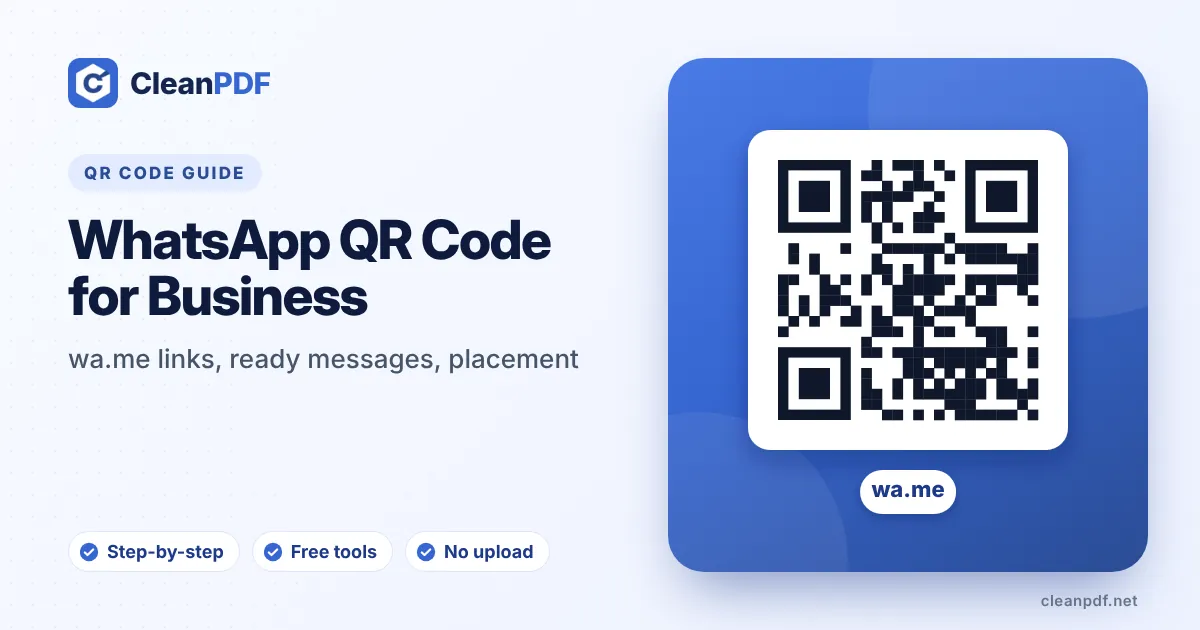
A WhatsApp QR code holds a click-to-chat link: https://wa.me/ followed by your number with the country code and no plus sign or leading zero, for example https://wa.me/923001234567. Add ?text= and a message to have it typed in for the customer. Make the code with WhatsApp QR Code Generator, or use the one inside the WhatsApp Business app under Business tools. Test it on two phones before printing.
In Pakistan, India, Indonesia, Brazil and much of Africa and the Middle East, WhatsApp is where customers ask about prices, place orders and send payment screenshots. Every step between "I’m interested" and "message sent" costs you people. A QR code removes nearly all of them.
How it works
WhatsApp’s official click-to-chat links open a chat with a number without saving it as a contact. The QR code simply contains that link.
| Part | Example | Rule |
|---|---|---|
| Base | https://wa.me/ | Always the same |
| Number | 923001234567 | Country code + number; no +, no spaces, no leading 0 |
| Ready-typed message (optional) | ?text=Hi%2C%20I%27d%20like%20a%20price | URL-encoded; the generator does this for you |
The most common mistake is keeping the local leading zero: wa.me/03001234567 won’t work for a Pakistani number; it has to be wa.me/923001234567.
Two ways to get the code
| WhatsApp Business app | Your own wa.me code | |
|---|---|---|
| Where | Settings > Business tools > Short link / QR code | WhatsApp QR Code Generator |
| Link format | wa.me/message/… short link | wa.me/number?text=… |
| Different messages per campaign | One default message | As many as you like |
| Design | Fixed WhatsApp style | Your colours, logo, PNG/SVG for print |
| Works with a regular WhatsApp number | Business app only | Yes |
A handy trick with your own codes: use a different ready-typed message for each place. "Hi, I saw your shop sign" versus "Hi, I got your flyer" tells you which one brought the customer.
Writing the ready-typed message
- Keep it short and from the customer’s point of view: "Hi, I’d like to order", "Hi, please send me today’s menu".
- Include a reference when it helps: product code, table number, flyer name.
- Never put prices or anything that may change; once printed, it’s fixed.
- The customer can edit it before sending, so it’s a starting point, not a script.
Where to place it
- Shop counter and front window: "Scan to order on WhatsApp".
- Product packaging and delivery bags: for reorders and complaints.
- Visiting cards and flyers: next to the number, not instead of it.
- Restaurant tables and menus: for orders and takeaway. QR codes for restaurants has more ideas.
- Instagram and Facebook posts: a QR code works when someone sees your post on a laptop and wants to message from their phone.
Printing it well
Use at least 2.5 to 3 cm for cards and counter signs, larger for posters. Dark code on a light background, a white margin around it, and a short line of text saying what happens when you scan. Download SVG or PDF for the printer. The full rules are in QR code size for print, and branding tips in logo and colours on a QR code.
Test before you print 500
- Scan with an Android phone and an iPhone.
Use the normal camera app.
- Check the chat opens to the right number.
And that the ready-typed message reads correctly.
- Test from a phone that doesn’t have WhatsApp.
It should open a WhatsApp web page offering to install it, not an error.
Frequently asked questions
How do I make a WhatsApp QR code?
What is the wa.me link format?
Can I add a message to a WhatsApp QR code?
Do I need WhatsApp Business for a QR code?
Why does my WhatsApp QR code open the wrong number?
Make your WhatsApp QR code
Number, ready-typed message, colours and logo. Download PNG or SVG.
Open WhatsApp QR Generator
Founder of CleanPDF. I build the site’s browser-based PDF, image, QR code and calculator tools, and I write these guides around the questions people send in while using them.