
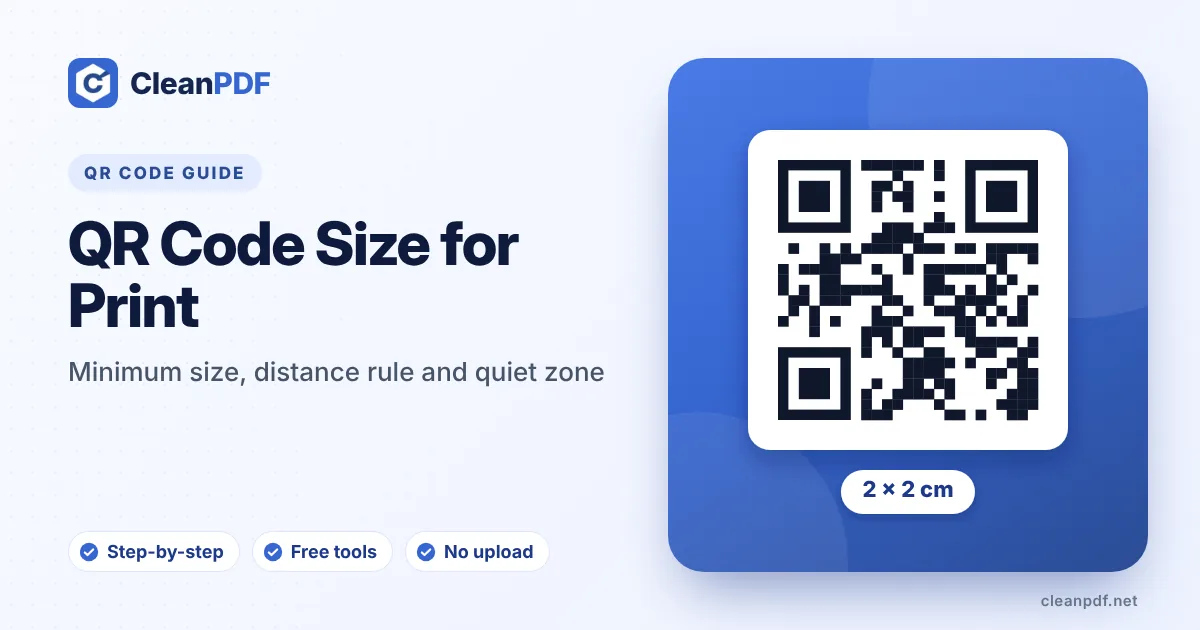
Make the code at least 2 × 2 cm (about 0.8 inch) for anything scanned in the hand, such as a business card or label. For anything further away, divide the scanning distance by 10: a poster read from 2 metres needs a code about 20 cm wide. Leave a blank margin of at least four modules (the small squares) around it, and keep the link short so the pattern stays simple.
A QR code that works perfectly on your screen can fail on paper. Usually it is printed too small for the distance people stand from it, squeezed against other artwork, or blurred because a small PNG was stretched to fill a poster.
There is no single “correct” size, but there is a simple rule, and a few numbers worth remembering.
The 10:1 distance rule
Phone cameras need each little square of the code (a module) to cover enough pixels to tell black from white. The further away the phone is, the bigger the modules must be. A widely used rule of thumb is:
Code width = scanning distance ÷ 10
| Where it’s used | Typical scanning distance | Minimum code width |
|---|---|---|
| Business card, product label | 15–25 cm | 2–2.5 cm |
| Flyer, menu, table tent | 25–40 cm | 3–4 cm |
| A4 poster on a wall | 1 m | 10 cm |
| Shop window | 1.5–2 m | 15–20 cm |
| Banner or billboard | 5 m and more | 50 cm and more |
The rule assumes a reasonably simple code and decent light. If your code is dense, the lighting is poor or people scan at an angle, go bigger.
The absolute minimum
For anything held in the hand, 2 × 2 cm is a sensible floor. Smaller codes do scan with modern phones, but only when the content is very short and the print is sharp. A code on a business card at 1.5 cm with a long tracking URL is asking for trouble.
Shorter content means bigger squares
The more data you store, the more modules the code needs. At the same printed size, more modules means each one is smaller and harder to read.
- A short link such as
yourshop.com/menuproduces a small grid of large modules. - A long link with tracking tags, or a full contact card with address and notes, produces a dense grid of tiny modules.
If a code has to be small, shorten what goes into it. For contact cards, leave out the street address and the note. For links, use the plain page address and keep campaign tags short.
Leave the quiet zone alone
The QR standard expects a blank margin around the code, at least four modules wide on every side. Scanners use it to find where the code begins. Designers love to crop it, push text right up against the code or place it on a busy photo. Each of these can stop the code from scanning.
Logos and colours
A logo in the centre covers part of the code. That works because QR codes carry built-in error correction, but it means you’re spending some of that safety margin on decoration. When adding a logo:
- Set error correction to H (about 30% recovery) or at least Q.
- Keep the logo small, no more than about a fifth of the code’s width.
- Keep the code dark on a light background. Light codes on dark backgrounds don’t scan on some older phones.
- Keep strong contrast. Pale grey on white or dark blue on black looks elegant and scans badly.
Send the printer a vector file
A 300-pixel PNG looks fine on screen but goes soft when stretched across a 20 cm poster, and soft edges make modules blur together. For print, download SVG or PDF. They are vector formats, so they stay razor sharp at any size. If you must use PNG, export it big: at 300 DPI, a 5 cm code needs about 600 pixels. Our guide to image resolution and DPI explains the maths.
Tricky surfaces
- Curved bottles and cups: keep the code small relative to the curve, or the edges bend out of view. Place it on the flattest area.
- Glossy or laminated cards: reflections under shop lights wash out the code. Matte finishes scan more reliably.
- Fabric and embroidery: go much larger and simpler; thread can’t make crisp small squares.
- Screens and TV: people are far away and the code is on screen briefly. Make it big and keep it there long enough.
Test before the full print run
Print one proof at the real size on the real material. Scan it with two or three different phones, including an older one, from the real distance and in the real light. It takes five minutes and saves reprinting a whole batch. If it fails, our checklist for QR codes that won’t scan covers the usual culprits.
Frequently asked questions
What is the minimum size for a QR code?
How big should a QR code be on a poster?
How much white space does a QR code need?
Which file format is best for printing a QR code?
Does a logo make a QR code harder to scan?
Get a print-ready QR code
Download SVG or PDF for sharp printing at any size, with error correction you choose.
Create a QR Code