
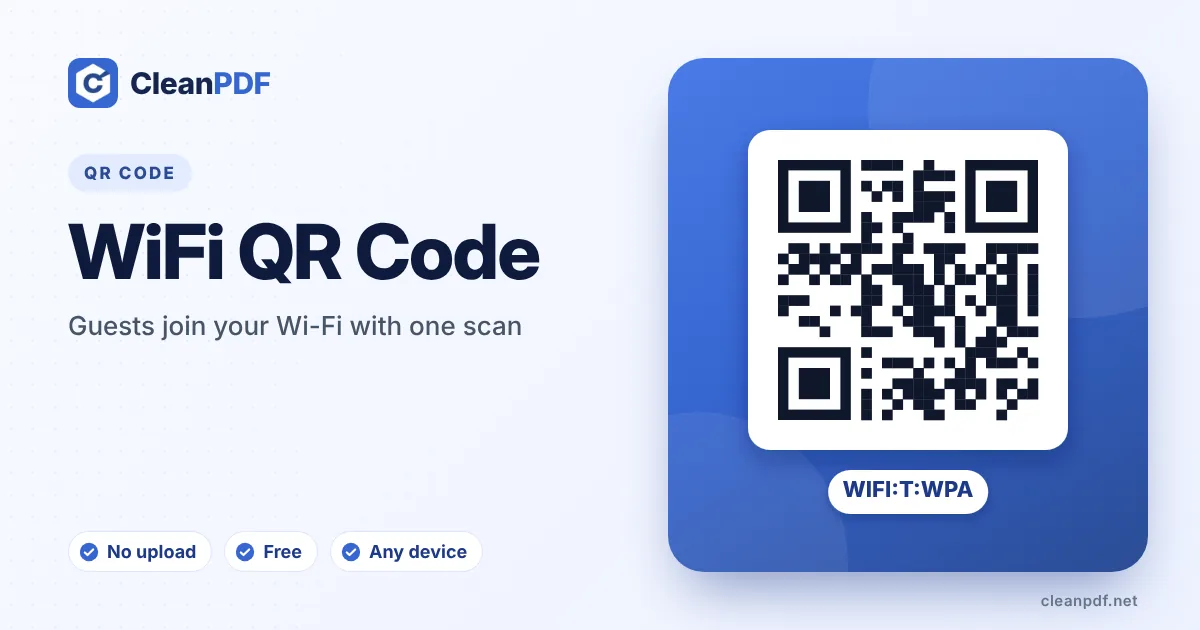
Quick answer: type the network name (SSID) exactly as it appears – capitals and spaces matter – then the password, and keep security on WPA/WPA2/WPA3 unless your router says otherwise. Scanning the finished code with an iPhone or Android camera shows a “Join network” button. Download it on its own, or as a ready-to-print A6 Wi-Fi card with the network name.
What goes into a Wi-Fi QR code
The code contains a short line of text in a format phones understand: WIFI:T:WPA;S:MyHomeWiFi;P:secret123;;. T is the security type, S the network name, P the password, and an optional H:true marks a hidden network. Special characters such as ; , : and quotes are escaped for you, which is the usual reason home-made Wi-Fi codes fail.
Choosing the security setting
| Your router shows | Choose |
|---|---|
| WPA2-Personal, WPA3-Personal, WPA/WPA2 mixed | WPA/WPA2 – phones also join WPA3 networks with it |
| WEP (very old routers) | WEP – and consider upgrading, WEP is easy to crack |
| Open / no password | None (open) |
| WPA2-Enterprise (username + password) | Not supported by phone cameras – give staff a setup guide instead |
Where to find your network name and password
Look at the sticker on the bottom of the router (“SSID” and “Key” or “WPA key”). If you changed them, open the router’s settings page, or on a Windows PC run netsh wlan show profile name="Network" key=clear. On an Android phone that is already connected, Settings › Wi-Fi › your network › Share shows the password.
Cafés and guest houses usually print the Wi-Fi code next to a menu QR code and a location QR code for directions. Lost the password but still have an old Wi-Fi code? The QR Code Reader shows it so you can make a fresh card.
How to make a Wi-Fi QR code
- Enter the network name. Type the SSID exactly, including capital letters, spaces and symbols.
- Enter the password. Exactly as set on the router. Leave it empty only for open networks.
- Pick the security type. WPA/WPA2 for almost every modern router. Tick “Hidden network” only if your network is hidden.
- Test and print. Turn off Wi-Fi on your phone, scan the code and tap Join. If it connects, download and print it.
Keep guests off your main network
Most routers can run a separate guest network. Put that one in the QR code: guests get internet, but not access to your printers, cameras or shared drives. If you change the guest password every few months, just make a new code – it takes ten seconds.
Print a Wi-Fi card in one click
Below the preview you’ll find “Wi-Fi card PNG” and “Wi-Fi card PDF”. They create an A6 card (105 × 148 mm) with your heading, the QR code, the network name and – if you tick the option – the password, for guests whose phones can’t scan. The PDF prints at exactly A6; four fit on an A4 sheet if you print at 50% and cut.
Where to put it
- Homes and holiday rentals – inside a kitchen cupboard door or in the welcome folder, not on the street-facing window.
- Cafés and salons – on the counter card or table tent, with the guest network only.
- Offices and clinics – in the waiting area for the guest network; staff networks with Enterprise logins can’t use QR codes.
When the network or password changes
The details live inside the code, so a new password means a new code. Keep the downloaded PNG with your router notes and you can regenerate it in seconds. Changing the guest password every few months – and reprinting the card – is a simple habit that keeps neighbours and past visitors off your bandwidth.
Frequently asked questions
Do iPhones scan Wi-Fi QR codes?
Yes. Since iOS 11 the built-in camera recognises Wi-Fi codes and shows a “Join network” notification. Android phones do the same in the camera or Google Lens.
Is it safe to print my Wi-Fi password as a QR code?
Anyone who scans it can join, exactly as if you told them the password. Put the code where only guests see it, and use a guest network for public places.
Why does my phone say it could not join?
Usually the network name or password has a typing difference, or the security type is wrong. Check capitals and spaces, and try WPA/WPA2.
Does it work with WPA3?
Yes. Choose WPA/WPA2; phones use it for WPA3-Personal networks as well.
Can I connect a laptop with this code?
Laptops have no camera scanner for Wi-Fi, so use a phone. Windows and Mac users can still read the network name and password printed next to it.
Do you store my Wi-Fi password?
No. The code is generated in your browser and the details are never sent anywhere.
Can I print the Wi-Fi name and password with the code?
Yes. Use “Wi-Fi card PNG” or “Wi-Fi card PDF” to get a print-ready A6 card. Untick the password option if you want guests to join only by scanning.
Why does the password field show dots?
So people looking over your shoulder can’t read it. Press “Show” to check what you typed.