
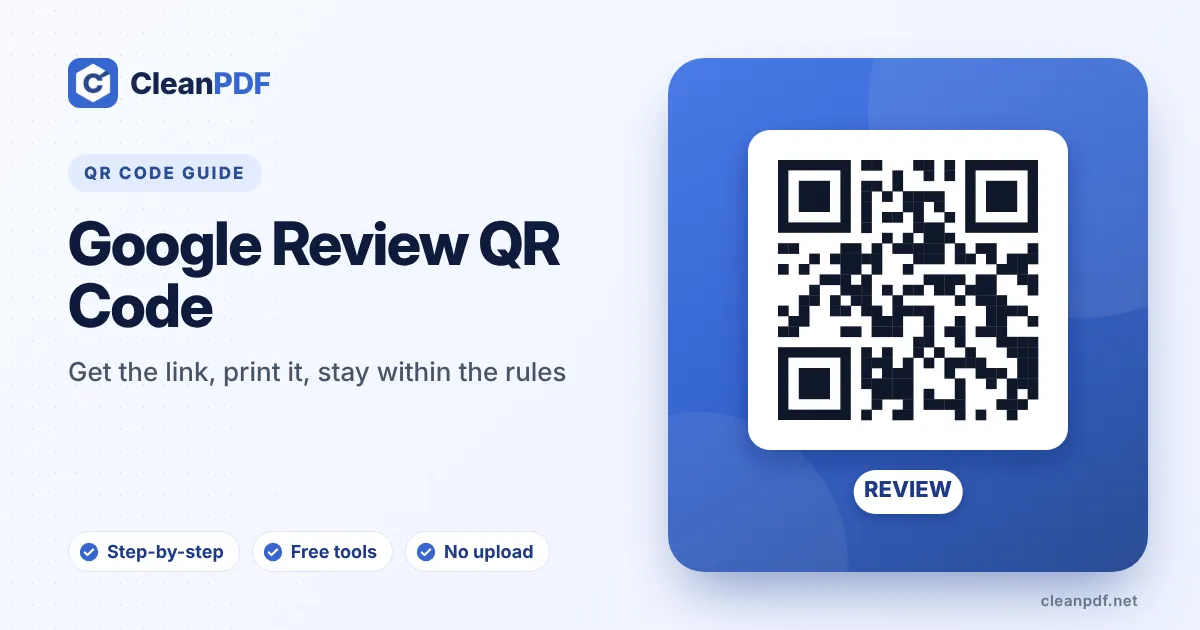
In your Google Business Profile, open Read reviews > Get more reviews and copy the review link (it looks like g.page/r/…/review). Google also shows a QR code there, but only in a computer browser. For a branded code in your colours, paste the link into URL QR Code Generator. Ask every customer the same way, and never offer anything in return for a review.
Reviews influence where people eat, which plumber they call and which shop they walk into. Most satisfied customers would leave one if it took ten seconds. A QR code that opens the review box directly is the closest you can get to that.
Step 1: get your review link from Google
- Open your Business Profile on a computer.
Search for your business name on Google while signed in to the account that manages it.
- Choose Read reviews, then Get more reviews.
A panel shows your review link and a QR code.
- Copy the link, or save the QR code.
Right-click the code and choose "Save image as". Google currently generates this code only in a computer browser, not on phones.
The link opens the "Write a review" box for your business directly, without the customer having to search for you.
Step 2 (optional): make a branded code
Google’s code is plain black and white at a fixed size. For printed cards and stands, paste your review link into URL QR Code Generator, add your colours or logo, and download SVG or PDF for the printer. Keep it dark on a light background so it still scans easily; see logo and colours on a QR code.
Step 3: put it where the moment is right
- Counter or till: a small stand with "Enjoyed your visit? Review us on Google".
- Receipts and invoices: printed at the bottom, or as a link in digital invoices.
- Takeaway bags and delivery boxes: customers scan at home, when they’ve tried the product.
- Restaurant bill folders: the moment people are sitting with their phones anyway.
- After a job: service businesses can leave a card, or send the link on WhatsApp once the work is done.
Saying it out loud helps more than any design: "If you were happy with this, a Google review really helps us."
Stay within Google’s rules
| Fine | Not allowed |
|---|---|
| Asking every customer in the same neutral way | Offering discounts, gifts or entries into a draw for reviews |
| Reminding customers that reviews help | Asking only happy customers ("review gating") |
| Replying politely to all reviews, good and bad | Writing reviews yourself, or having staff and family do it |
| Making the link easy to find | Buying reviews or swapping them with other businesses |
Google removes reviews that break its policies and can restrict profiles that keep doing it. A steady stream of genuine reviews is worth far more than a sudden burst of suspicious ones.
Printing and testing
A counter stand or table card needs a code of about 3 to 4 cm; a window sticker read from a metre or two, 10 cm or more. Test with an Android phone and an iPhone, signed in and signed out of Google, before printing a batch. QR code size for print has the full guidance.
Frequently asked questions
How do I get a QR code for Google reviews?
Why can’t I find the review QR code on my phone?
Can I give customers a discount for leaving a review?
Can I make a Google review QR code in my brand colours?
Where should I put a Google review QR code?
Make a branded review QR code
Paste your Google review link, add colours or a logo, download for print.
Open URL QR Generator
Founder of CleanPDF. I build the site’s browser-based PDF, image, QR code and calculator tools, and I write these guides around the questions people send in while using them.