
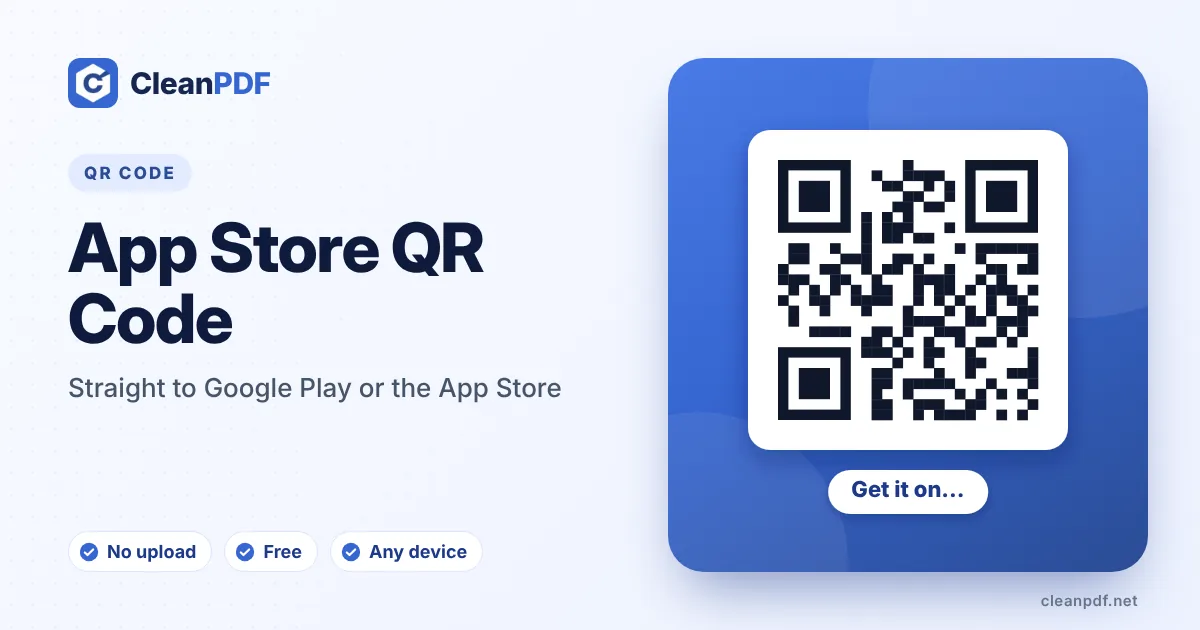
Quick answer: paste your Google Play link, your App Store link, or both. With both, this generator makes two codes side by side – one labelled Android, one iPhone – and downloads them as a single image or PDF, ready for posters and packaging. Each code opens its store directly on the right phone.
One store per code – or one smart page
A static QR code holds one link, and a Play Store link doesn’t open on an iPhone. You have two good options:
- Two codes side by side, each under its official store badge – clear and dependable.
- One code to a download page on your website (for example
yourapp.com/get) that shows both badges or sends each phone to the right store.
Finding your store links
Google Play: open your app’s listing in a browser and copy the address – it ends in ?id=com.yourcompany.app; you can remove extra parameters like &hl=en. Apple: on the App Store page tap Share › Copy link, which looks like apps.apple.com/us/app/name/id123456789. Removing the /us part lets the store pick the visitor’s country.
Where app codes work
Shop counters (“Order in the app and skip the queue”), restaurant tables, product packaging for connected devices, the last slide of a talk, and the back of receipts with a first-order discount.
Want people to see the app before they install it? Point a URL QR code at your landing page or a YouTube QR code at the demo video. For a launch campaign that also promotes your channels, the social media QR code generator collects every link in one place.
How to make a QR code for an app
- Paste your Google Play link. From your app’s listing in a browser – it ends in ?id=com.yourcompany.app.
- Paste your App Store link. From Share › Copy link on the App Store page. Add one or both.
- Label and style. Edit the labels, add your app icon in “Style it”.
- Download both together. PNG, JPG and PDF give a side-by-side image; SVG downloads each code separately.
Side-by-side download, ready for design
When both links are filled in, PNG, JPG and PDF downloads contain both codes with their labels underneath, on one canvas – drop it straight into a poster, flyer or packaging layout. SVG downloads two separate vector files (-android.svg and -iphone.svg) for designers who want to place them individually next to the official store badges.
Store links that won’t break
| Store | Clean link | Avoid |
|---|---|---|
| Google Play | play.google.com/store/apps/details?id=com.app | Extra &hl=, &gl= and tracking parameters |
| App Store | apps.apple.com/app/id123456789 | Country path (/us/) and long app-name slugs |
Both forms stay valid for the life of the app, through every update and rename.
Where app codes convert best
At the moment of need: on the receipt that says “Reorder in the app”, on the parcel that says “Track it live”, on the restaurant table that says “Pay and order from your phone”. Pair the code with a reason and, if you can, a first-order reward.
Checklist before printing
- The app is published and available in every country where the print will be seen.
- Each code opens on the matching phone: scan the Android code with Android, the iPhone code with an iPhone.
- Labels under the codes match the official badges you place beside them.
- On packaging, print each code at least 2.5 cm and keep both on the same side of the box.
Measuring installs from print
Google Play accepts a referrer parameter on store links, which appears in the Play Console’s acquisition reports. Apple offers campaign links (pt and ct parameters) visible in App Store Connect. Add them to the links before making the codes, and use a different campaign name for each poster or product – you’ll see which print actually brings installs. Keep the extra parameters short so the codes stay easy to scan.
Frequently asked questions
Can one QR code open both stores?
A static code holds one link. This generator therefore makes two labelled codes side by side. If you want only one code, link it to a web page that sends each phone to its store.
Does it open the store app directly?
Yes. Play links open the Play Store on Android and App Store links open the App Store on iPhone.
Can I link to a Huawei AppGallery or other store?
Yes – paste any store link; the store picker is only for your reference.
Will the code still work after an app update?
Yes. Store links stay the same across versions; only removing the app from the store breaks them.
Can I track installs from the QR code?
Add store campaign parameters (Play referrer or App Store campaign links) to the link before creating the code.
Can I use the official store badges?
Yes, both Apple and Google provide badges – follow their guidelines and place the badge next to the code.
Can I download both codes in one image?
Yes. With both links filled in, PNG, JPG, PDF and Print give one image with both labelled codes side by side.
Do I need both links?
No. Fill in only one and you get a single code for that store.
Can I track installs from a QR code?
Yes, by adding Google Play referrer or App Store campaign parameters to the links before creating the codes; the stores report them in their consoles.
What size should app QR codes be on a poster?
About one tenth of the distance people stand from the poster: 10 cm codes for people 1 m away.